

At McMaster University, our partnership with Microsoft empowers students, staff, faculty, and community members with licenses to access to a comprehensive suite of applications and services. These licenses ensure you have everything you need to succeed, all in a secure environment.
What is a Microsoft License?
A Microsoft license provides access to a suite of tools and services that enhance productivity and collaboration. At McMaster, community members receive either an A1 or A5 license based on their role.
These are the Microsoft 365 applications available to community members based on A1 & A5 license type.
- Clipchamp: Create and edit professional-quality videos with an easy-to-use online video editor.
- Copilot: Get AI-powered assistance to boost your productivity.
- Excel: Analyze and visualize data efficiently with powerful spreadsheets.
- Forms: Collect and analyze data with easy-to-create surveys and quizzes.
- Loop: Collaborate in real time with flexible components that sync across Microsoft 365 apps.
- OneDrive: Store and share files securely in the cloud.
- OneNote: Organize notes, ideas, and tasks in a digital notebook.
- Outlook: Manage emails, calendars, and tasks seamlessly in one place.
- Planner: Organize teamwork visually with task boards, due dates, and progress tracking.
- Power BI: Transform data into interactive visualizations and insightful reports.
- PowerPoint: Essential for creating impactful presentations and dynamic slideshows.
- Stream: Share and manage video content securely for seamless communication and learning.
- Sway: Create and share interactive reports, presentations, and stories.
- Teams: Collaborate and communicate with your team in real-time.
- Word: Create and edit documents with ease.
The following table outlines license types for McMaster community audience groups.
A1 & A5 License Details.
*NOTE: These new licenses will take effect summer 2025.
Feature |
A1 | A5 |
| OneDrive Storage | 100GB. | Varies. See ‘Upcoming Microsoft Storage Limits’ page. Access the ‘Upcoming Storage Limits’ page. |
| Desktop Apps. | Not available. | Available. |
| Mobile Apps. | Available. | Available. |
| Web-based Microsoft 365 Apps. | Available. | Available. |
| Microsoft Bookings | Not included. | Included. |
| Power BI Pro | Can be requested (fee). See information below. | Included. |
| Teams Dial-In Audio Conferencing [coming soon] |
Not included. | Included. |
| Best For | Light or infrequent Microsoft 365 use. | Full-featured Microsoft 365 experience. |
Information Box Group

How to access your Microsoft 365 apps. & services Get started with 365 and learn more about Microsoft apps.
McMaster University provides free access to Microsoft 365 for all students, staff, and faculty members.
Simply log in with your MacID@mcmaster.ca email and password to use Word, Excel, PowerPoint, Outlook, Teams, and more!

Microsoft Power BI Pro If your account does not include Power BI Pro, click here to request a license.
Nearly all Mcmaster staff, faculty and employees now have complimentary access to Microsoft Power BI Pro. Access Power BI Pro in your Microsoft app tray or click the link: Access Power BI Pro.
Not sure if you have Pro?
In Power BI, click the ‘Account Manager’ button in the top-right corner of the page. Under ‘License Type’, you’ll see ‘Pro.’
Note: Graduate/Undergraduate students are not eligible for a Power Bi Pro license.
Frequently Asked Questions regarding the Microsoft licensing model at McMaster University
Yes, you can still access files stored locally on your computer!
First, visit the new Microsoft 365 Hub. This is where all of your files and apps are centrally located.
Accessing locally stored files is easy. There are two ways to do so:
1) Open the Office app (such as Word) on Microsoft 365.
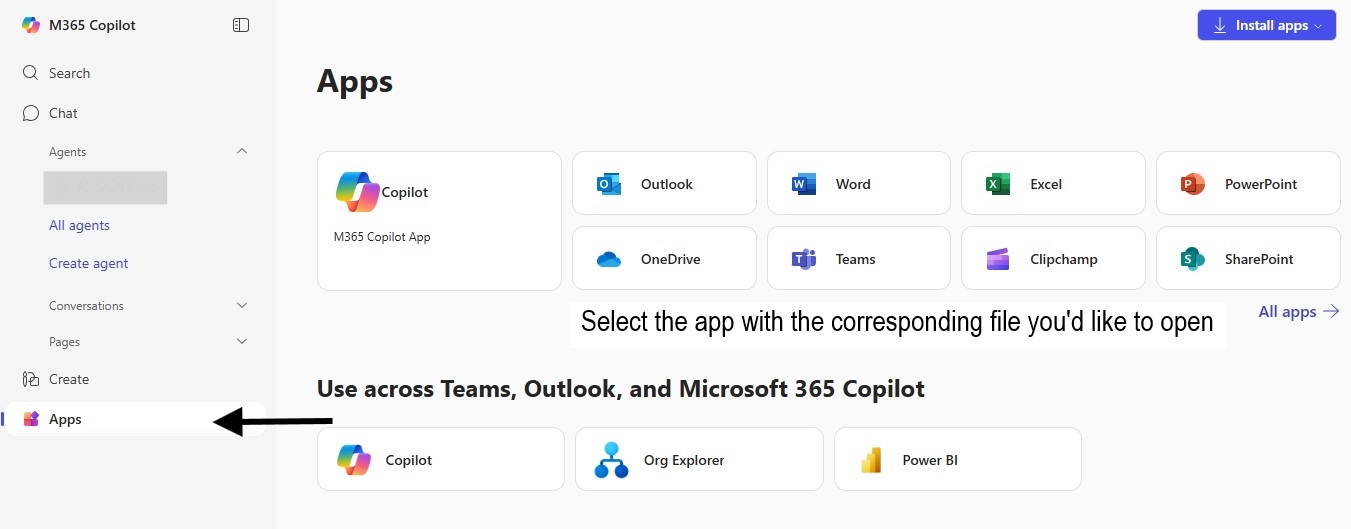
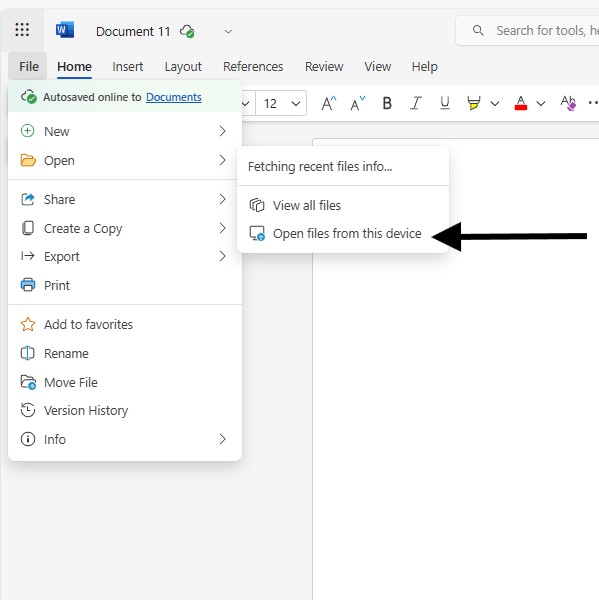
Select “Create blank document”, click “File”, then choose “Open Files from this device” and browse to your personal files. Pop-ups must be enabled in the internet browser.
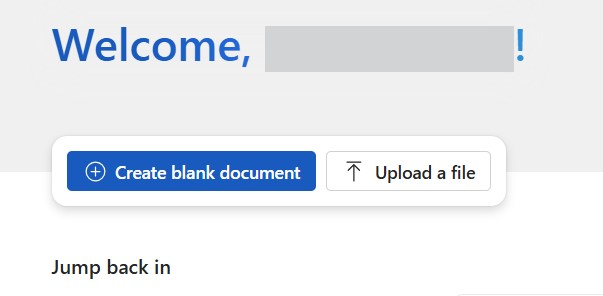
2) Or, select the “Upload a file” button and browse to your personal files. The file will be uploaded and open in a separate tab.
The file, either one you create from your online apps or one you upload from your device, will be automatically saved to your OneDrive storage. In the new Microsoft 365 Hub, files autosave as you work on them.
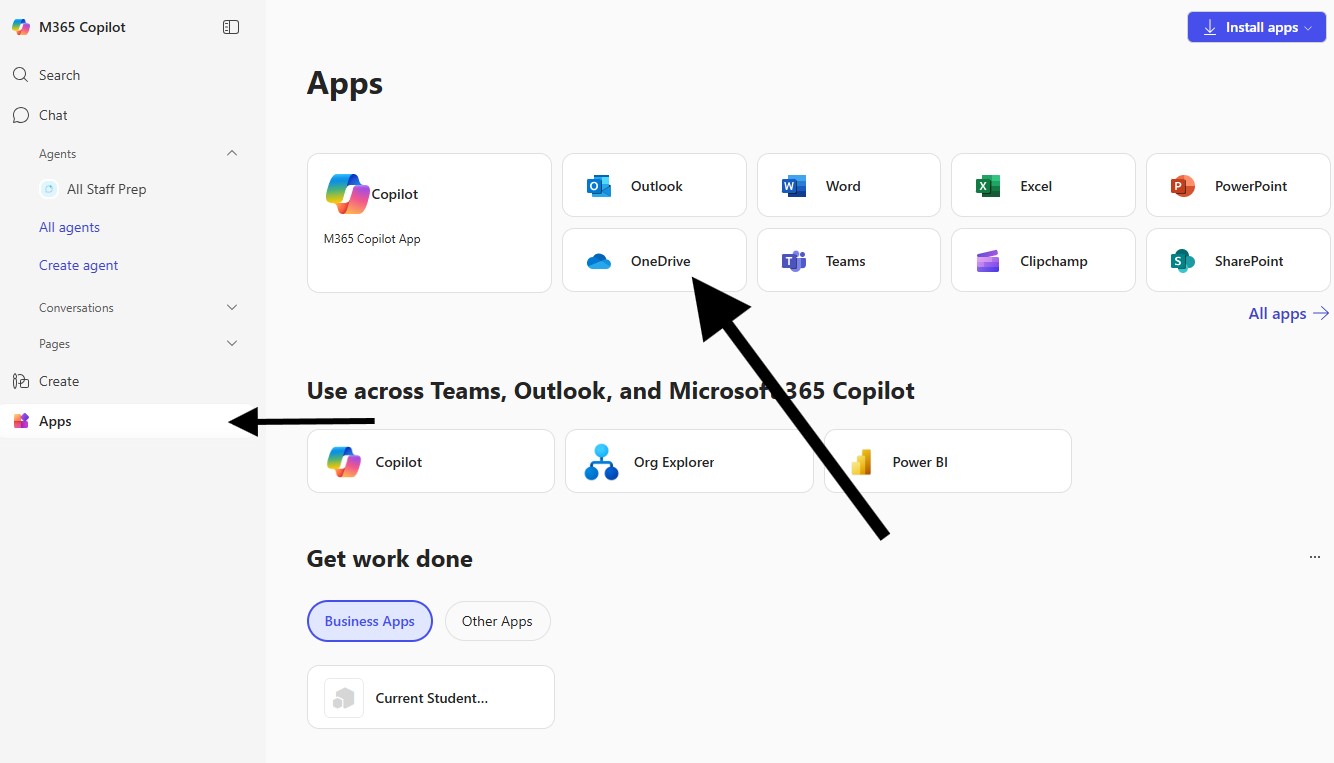
Accessing OneDrive is easy! First, navigate to the new M365 Hub, then select ‘apps.’ There, you’ll find all your applications at a glance, including OneDrive.
Although A1 users cannot access Microsoft Bookings, A1 users can still be ‘added’ to a Group Booking page.
If your team/department/faculty/group uses Microsoft Bookings, you can still be added as a “bookable” person and assigned meetings, etc.
Yes! If you have a standard (A1) license and require a different license, you can request an upgrade. These requests will be considered on a case-by-case basis and require approval.
To request a license upgrade:
1) Click the link below to access the request form.
2) When the form opens, select the following option:
“I have a standard, web-based license (A1) and would like to request a license upgrade (requires manager approval).”
For any further questions or assistance, please reach out to the UTS service desk.