
Expandable List
Stay Connected, Your Way: Introducing the Avaya Workplace Softphone
As a McMaster employee, your phone options go beyond the desk! The Softphone (Avaya Workplace) is your office phone, everywhere you are.
What is a Softphone?
It’s an application that turns your computer, mobile, or tablet into a fully functional deskphone. Make and receive calls using your McMaster number from any internet-connected location.
- Complete Flexibility: Use a traditional deskphone or the softphone app—whichever fits your work style and location.
- Privacy First: Your personal mobile number stays private. All calls display your official McMaster phone number on caller ID.
- Seamless Remote Work: Effortlessly dial, receive, and manage calls from home or while traveling.
- Easy Calling: Create a personalized phonebook and quickly dial colleagues using the Faculty & Staff Directory.
- Advanced Features: Utilize robust tools like call forwarding, voicemail-to-email, conferencing, and more.
- 24/7 UTS/Telecom Support: Our services are part of McMaster’s 24/7 supported infrastructure, ensuring constant assistance.
- HD Audio Quality: Enjoy crystal-clear conversations with superior HD Voice Quality.
Ready to Get Started?
1. Download the application here
2. Need Login Help? If you require assistance with your PHONE LOGIN credentials, please email us at telecom@mcmaster.ca.
My desk phone says username and password? What do I do?: You need the extension (as the username) and a phone password (this is not your voicemail password) to log in to the set.
My desk phone has another extension logged in? What do I do?: You can log out the extension and then login with your own. You need your extension (as the username) and a phone password (this is not your voicemail password) to log in to the set.
I have been using my McMaster Softphone ~ Avaya Workplace, while working from home, and my phone is logged out on campus?: You must enter the same credentials to log in as you did with the softphone. The credentials are the same.
I don’t remember my password and/or extension. Who do I contact?: You can email: telecom@mcmaster.ca or submit a ticket
My phone says: Acquiring Service. What does that mean?: There has been a few updates to the phones, and perhaps some power outages. First thing to do is, if possible, unplug the set. Check to see if it reboots and you can enter your credentials. If not, contact us at: telecom@mcmaster.ca
My phone says: EMERGENCY CALLS ONLY. What does this mean?: This means that your phone is NOT logged in. It can only dial out for security. If you need to make other calls, your phone needs to be logged in.
Your phone must be logged in with a valid extension in order to receive calls. If the phone is not logged in, you will see a prompt on the display screen to “Enter Username”. Please note, this is NOT your voicemail password.
- Enter your 5-digit extension as the username, and then press the ‘OK’ button.
- The cursor will then move into the “Password” field. Enter the PIN and then press the ‘OK’ button.
If you need to retrieve your PHONE LOG IN PASSWORD, please email : telecom@mcmaster.ca
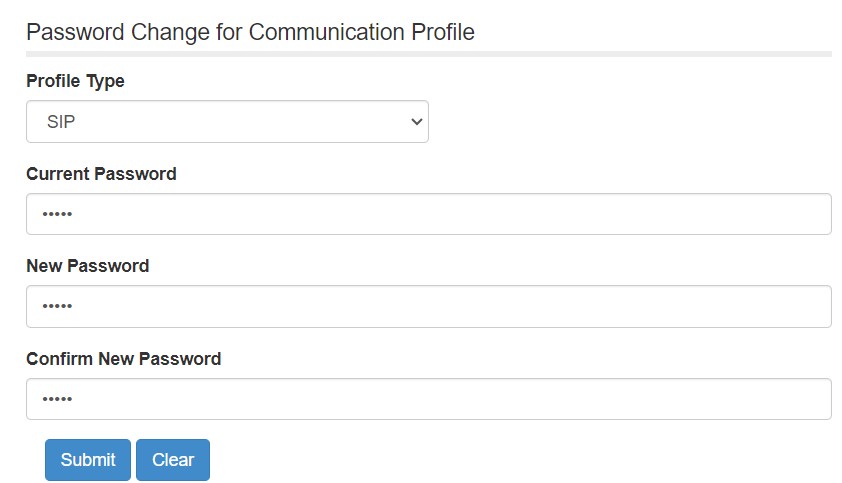
If you know your PHONE LOG IN PASSWORD and would like to RESET the password, you must be connected to McMaster’s VPN, click here: https://phonepin.mcmaster.ca/selfprovisioning/
- Enter (your extension, not your email address) xxxxx@uts.mcmaster.ca & then password, and click Login.
- Once logged in, Select Profile Type: SIP, enter current password, then enter the new password.
- Click Submit
EMERGENCY (DIALING ON CAMPUS ONLY):
- 88
911 or Security Services (DIALING ON CAMPUS ONLY):
- 9 + 911 – Hamilton Police Services
- 911 – McMaster Security
CRISIS HELPLINE:
- 9-8-8
Internal (Extension to Extension)
- Dial 5 digit extension
Internal HHSC Dialing (University Calling a HHSC Extension & HHSC Calling University Extension):
- Dial the 5 digit HHSC extension
Local Calls
- Dial 9 + local area code + number
Wide Area Calling (formerly 86) ~ This is UNLIMITED CALLING.
What is WAC? It is unlimited Area Calling for North America, Canada & US (not including Alaska, Hawaii & Northwest Territories)
- Dial 9 + 1 + area code + number
Long Distance
- Dial 9 + 1 + area code + number, after tri-tone, enter your LD PIN, #
International Long Distance
- Dial 9 + 011 + country code + city code + number, after tri-tone, enter your LD PIN, #
1. Simple Requests (Connection Issues, General Inquiries)
For quick, non-urgent matters like basic connectivity checks or general information requests:
- Email us at: telecom@mcmaster.ca
2. Urgent Issues (Outages, Service Down)
For urgent problems with a Telecommunications service, software, or hardware:
- Call the Service Desk directly at: x24357
3. Formal Reporting (Complex Problems, Requests)
To formally report a complex issue or request new service:
- Submit a Ticket: Use the link below. Please ensure you include all information in the ticket: Telecommunications Services Issues
Information Box Group
McMaster Softphone ~ Avaya Workplace Features SOFTPHONE FEATURES
Check out the McMaster Softphone ~ AVAYA Workplace features for Desktop & Mobile
Desk Phone Features View Phone Features
To see a full breakdown of available phone features, please follow the link below.
View FAQ's View FAQ's
To view general FAQ’s, please follow the link below
Voicemail (Avaya Aura Messaging AAM) Quick Guide
To download a printable version of the the Voicemail AAM Quick Reference Guide, please contact telecom@mcmaster.ca